 By Marcus Chen
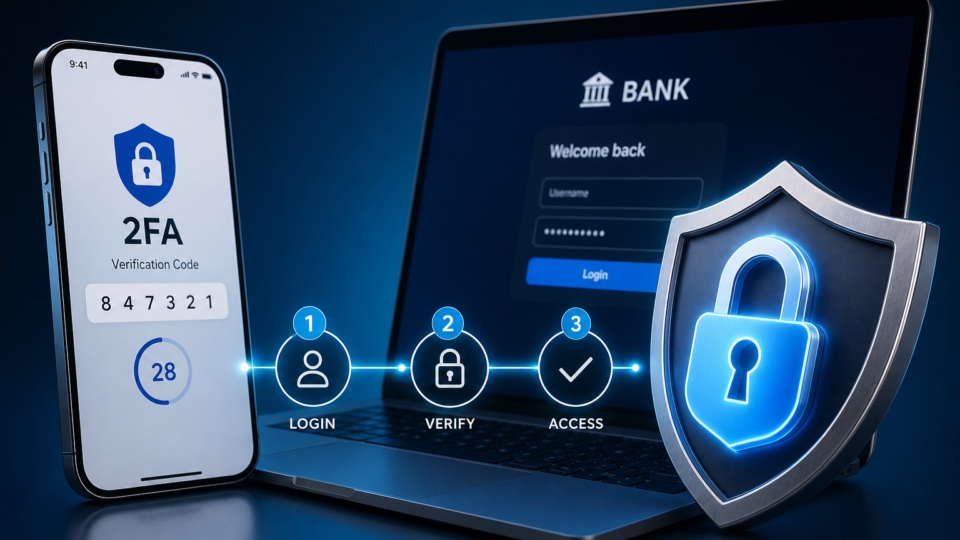
The first time you log in to your bank’s website and see a prompt for “extra security,” it’s natural to feel a mix of relief and anxiety. You want to keep your money safe, but the steps sound technical and the last thing you need is to get locked out and have to call customer service just to check your balance. The truth is, most people put off turning on two-factor authentication (2FA) for their bank accounts because it feels like a hassle or they’re worried about making a mistake. But leaving it off is like locking only the screen door and hoping for the best. The good news: with a few minutes and a little guidance, you can set up 2FA for your bank and take a huge leap in protecting your finances—without the headaches.
Why banks don’t enable 2FA by default—and why you need to
Most banks still don’t turn on two-factor authentication for their customers automatically. If you open a new account or start using online banking, you can expect to log in with just a username and password unless you take action yourself. That’s not because banks don’t care about security—it’s because they want to avoid overwhelming customers who might not be ready for the extra steps, and because not everyone has a smartphone or wants to share their phone number right away.
But this leaves a gap that’s too risky to ignore. Regulators like the Federal Trade Commission (FTC) and leading banks such as Wells Fargo have called out that 2FA is one of the most effective tools for blocking unauthorized access and potential account fraud. If someone gets your password—whether through phishing, data leaks, or just a lucky guess—2FA stops them cold by requiring a second, temporary code that only you can access.
If you want to lock down your most sensitive accounts, 2FA is the place to start. The FTC specifically recommends enabling it first on online banking, credit cards, and email, because those accounts have the most at stake if someone else breaks in.
The most common types of banking 2FA are SMS text codes, authenticator apps, and, in some cases, biometrics or hardware tokens. Each has its pros and cons, and not every bank offers every option, so it helps to know what you’re looking for before you dive into your security settings.
SMS-based 2FA is the most familiar. After you enter your password, the bank texts you a one-time, six-digit code. You type that into the website or app, and only then do you get access. It’s simple and works with any mobile phone, but if someone steals your phone number (SIM swap) or you lose your device, you could run into trouble.
Authenticator apps like Google Authenticator, Microsoft Authenticator, or Authy offer a stronger and more flexible option. Once you link your bank account to the app—usually by scanning a QR code—your phone generates a new six-digit code every 30 seconds. The app doesn’t need internet after setup, and it stays with you even if you swap SIM cards. Some banks also accept voice calls for codes, or let you use a fingerprint or face scan as a second factor using your phone’s built-in tools.
A few banks take things further with hardware tokens or biometric 2FA. For example, Bank of America’s SafePass Card generates one-time passwords for high-value transactions, while others may let you use fingerprint or face recognition as part of the login process. Check your bank’s security settings to see what’s available.
How to set up SMS-based 2FA for your bank account
Setting up SMS 2FA isn’t complicated, but you’ll want to pay attention to each step so you don’t get tripped up later. First, log in to your online or mobile banking account. Navigate to your Profile, Account, or Settings menu, and look for a section named “Security” or “Login & Security.” Here, you’ll usually see options labeled “Two-Factor Authentication,” “Two-Step Verification,” or “Multi-Factor Authentication.”
Choose SMS or text message as your preferred method. Enter your mobile phone number if prompted. The bank will send you a six-digit code by text. Enter this code into the space provided to confirm your phone number and activate SMS 2FA. You may be asked to name your device or save backup codes—do it now, as this can save you from lockouts if you lose your phone in the future.
From then on, every time you log in, you’ll enter your password first, then receive and type in a new code. If you change your phone number, update it in your bank’s settings immediately to keep your access smooth. And remember, SMS codes can be intercepted in rare cases—so if your bank offers an authenticator app, consider switching for even stronger security.
Setting up authenticator app 2FA: the fastest and safest method
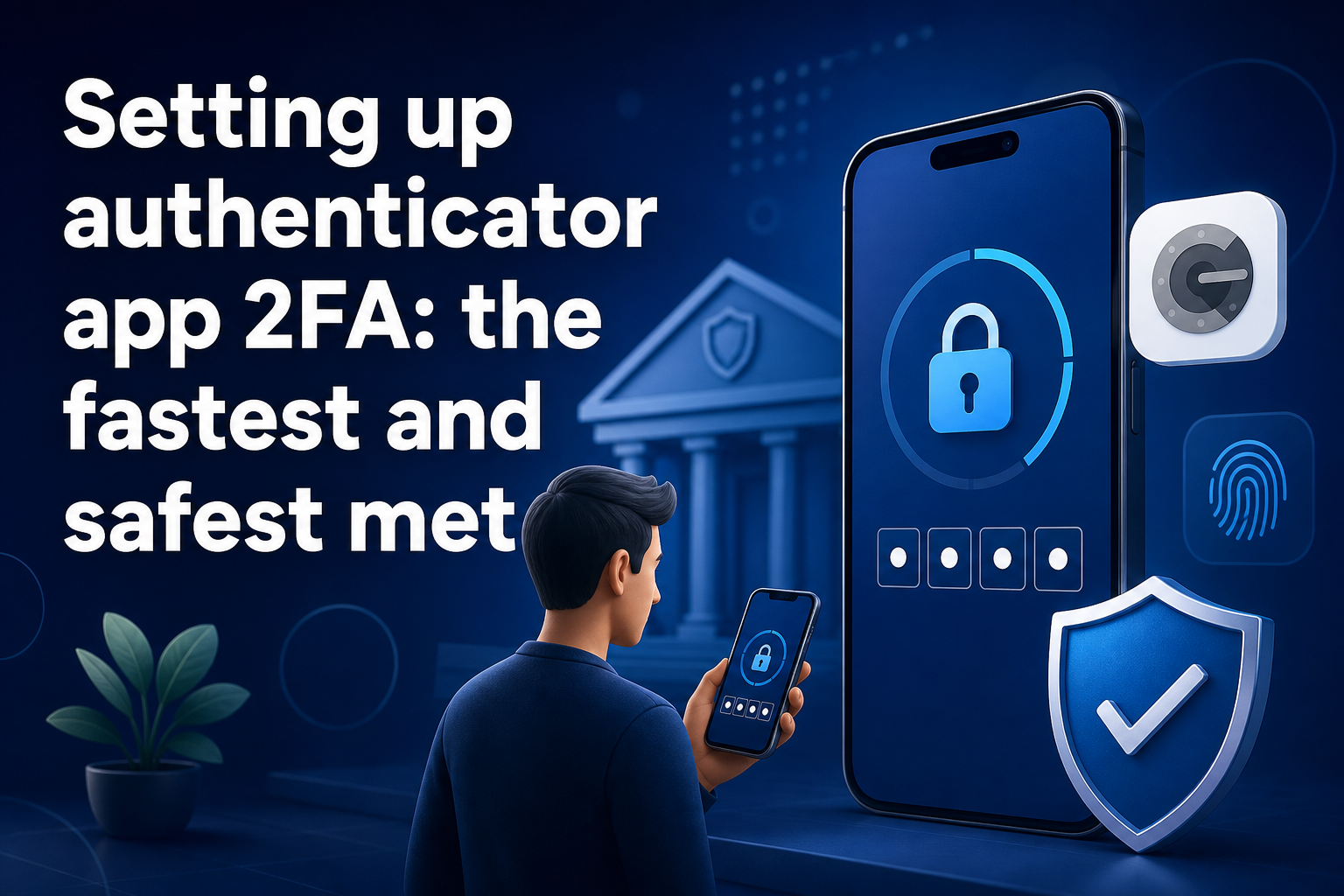
For many banks, authenticator apps are now the gold standard for 2FA. They’re fast, don’t rely on your cell carrier, and can’t be intercepted by text message scams. The setup only takes a few minutes.
Start by logging in to your bank’s online platform and heading to the Security or Login & Security section. Look for an option to enable app-based 2FA, sometimes labeled “Authenticator App” or “By authenticator.” Select this option, and the bank will display a QR code on your screen.
Open your chosen authenticator app—Google Authenticator, Microsoft Authenticator, or Authy are all widely supported. Tap to add a new account, then scan the QR code shown by your bank. The app will immediately generate a six-digit code that refreshes every 30 seconds. Enter this code back into your bank’s website or app to confirm the connection.
Don’t skip the backup codes. Most banks will display a set of single-use codes during setup—save these in a password manager, not on a sticky note or your phone’s camera roll. If you ever lose access to your authenticator app, these codes are your lifeline to get back in. Once setup is complete, log out and test the login process to make sure everything works. This is also a good time to add a backup method, like SMS or another device, if your bank allows it.
Real-world example: Setting up Bank of America SafePass
If you bank with Bank of America, you’ll see a system called SafePass for two-factor authentication. Here’s what the process looks like in real life:
After logging in, navigate to “Profile & Settings,” then select “Manage SafePass.” The bank explains how SafePass works, and you’ll see an option to “Add SafePass.” You can either add your mobile number for texted codes, or order a SafePass Card—a small hardware device that generates one-time passwords for added security.
If your mobile number is already on file, you can use it immediately; otherwise, you’ll be prompted to add a new number. Depending on your history with the bank, you may need to verify your identity using a debit or credit card on file, or by entering a code sent to your phone. Once your number is validated, you return to the SafePass page where you can add a backup device or order the SafePass Card for extra peace of mind.
This approach means you can choose the method that fits your lifestyle: quick text codes for everyday logins, or a physical token if you want to keep your main phone off the grid.
A strong two factor authentication banking setup is more than just flipping a switch. It’s about making sure you won’t get locked out and that your second factor is actually secure.
First, always store your backup codes somewhere safe—ideally in a password manager that you trust. Banks like Centier specifically warn against stashing codes in notebooks or unsecured files, since anyone who finds them could get into your account.
Next, if your bank supports it, enroll in more than one second factor. For example, set up both an authenticator app and SMS codes, or use a fingerprint login as a backup. This way, if you lose your phone or change devices, you have another way in.
After you set up 2FA, don’t just assume it’s working—test it right away. Log out, try logging back in, and make sure you can receive codes from each method you’ve enabled. If anything feels off, update your contact information or re-sync your authenticator app before you need access in a hurry.
Finally, while SMS is better than nothing, authenticator apps are harder for scammers to intercept and give you more control. If you’re traveling, lose cell service, or switch phone numbers, the codes keep working as long as your app is installed.
Once you’ve enabled 2FA, your daily routine shifts a bit, but not in a way that slows you down. Each time you log in to online or mobile banking, you’ll enter your password as usual, then be prompted for a code from your chosen second factor—either a text message, authenticator app, or hardware token.
Banks like Wells Fargo note that 2FA isn’t always triggered on every login. If you use a trusted device from your usual location, you may just need your password. But try logging in from a hotel in another state, or make changes to your account settings, and the bank will likely require the second factor to be sure it’s really you. This risk-based approach makes it harder for someone else to sneak in, while keeping everyday banking quick.
If you ever change phones or lose access to your codes, having backup codes and a recovery method will get you back in without drama. Most people find the extra step at login quickly becomes second nature—and the peace of mind is worth a few extra seconds.