 By Marcus Chen
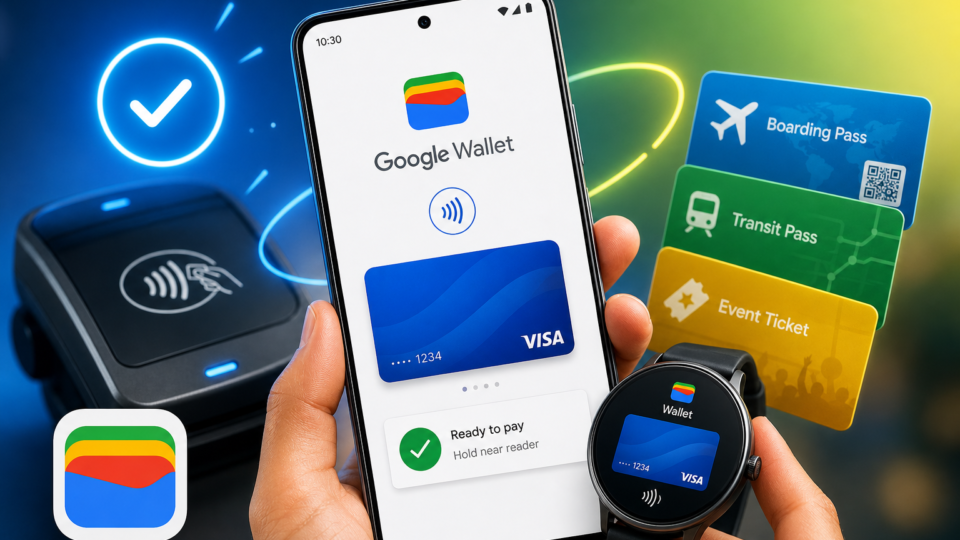
It’s a familiar scene: you’re in a hurry, hands full, and the line behind you is growing. Digging through your wallet for the right card feels clumsy, especially when all you want is a coffee before heading to work. Daily errands—grocery shopping, catching a bus, grabbing lunch—shouldn’t feel like an obstacle course. A well-prepared Google Wallet everyday payments setup can make your phone the only thing you need to breeze through these moments.
Where Google Wallet fits into daily life
Imagine a typical morning: you stop by a bakery for a quick bite, jump on the subway, and swing by a shop for lunch. As of 2026, Google Wallet tap-to-pay works anywhere Google Pay is accepted, which means most grocery stores, drugstores, convenience shops, and public transit systems. You’ll also find it accepted at vending machines, parking meters, and even some local markets—just check for the Google Pay logo.
But Wallet isn’t just for shopping. It’s built for all those everyday moments—scanning your phone at a bus turnstile, earning loyalty points at your pharmacy, or picking up concert tickets at the door. Since Wallet uses the same acceptance network as Google Pay, it’s reliable for everything from weekly supermarket trips to spontaneous snack runs with friends.
You don’t have to wonder if your payment will work. If a place takes Google Pay, Wallet will work too. That reliability means you can move through your day without pausing to double-check payment options.
Adding your cards to Google Wallet
Getting your cards into Wallet is straightforward. Open the app, tap “Add to Wallet,” and pick “Payment card.” You can scan your debit or credit card using your phone’s camera, enter the details by hand, or in certain countries, use the “Add with a tap” feature, which reads your card simply by holding it near your phone. This last option is a relief if you don’t like entering long numbers.
Maybe you juggle a few cards—a travel rewards card for flights, a debit card for everyday purchases. You can add them all and set one as default. Managing your cards in the app is easy, so you can switch between them if you’re splitting expenses or keeping work and personal spending separate.
If you’ve had trouble with other payment apps, you’ll likely be surprised by how quick this is. Even when your bank sends you a new card, updating the Wallet takes just a few taps, keeping your payment options current without a hassle.
Verifying your payment method
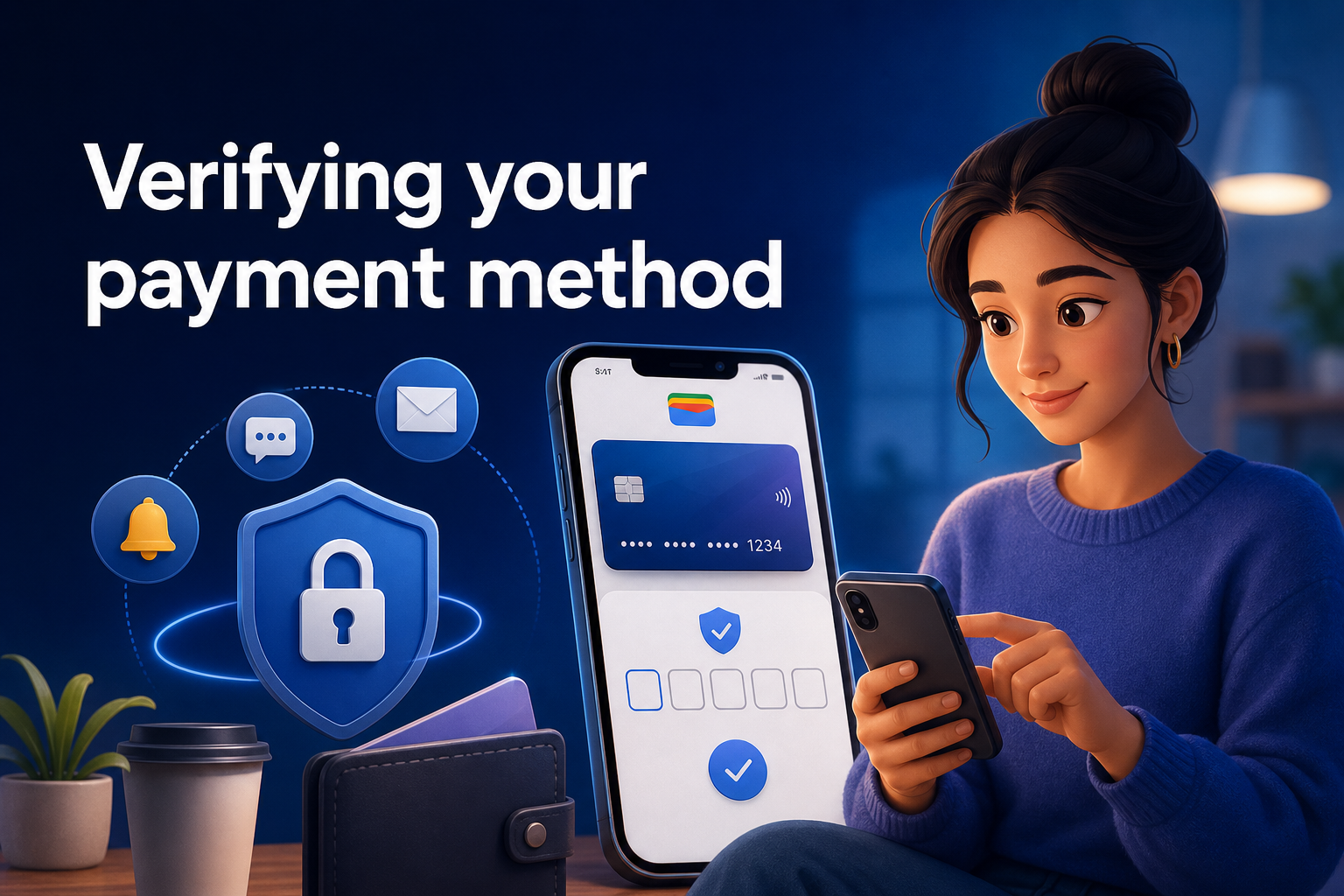
Banks want to keep things secure, so you might need to verify your card after adding it. Google Wallet guides you through the steps, which often include entering a code sent by SMS or email, responding to a push notification from your bank, or calling your bank’s support team.
On-screen instructions make it clear. If you pick SMS, enter the code you receive. For push notifications, just open your bank’s app and confirm. Each bank handles this a little differently, but Wallet makes the process hard to miss.
If you run into a problem—like the code never arrives or your bank doesn’t recognize the request—try removing and re-adding the card, double-check your contact info, or call your bank. Most verifications finish within a few minutes, so you’re back to your routine quickly.
Prepping your phone for tap-to-pay
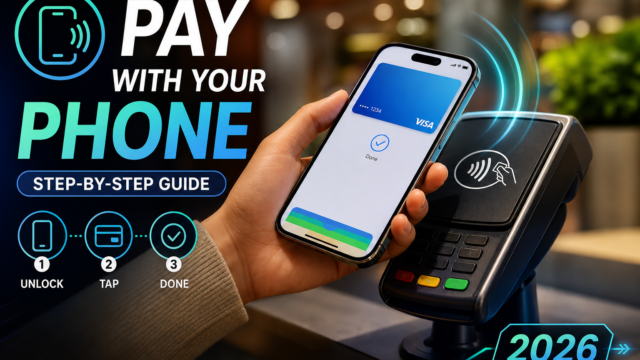
For tap-to-pay to work, your Android needs a quick checkup. Make sure NFC is turned on in your phone’s settings. NFC is what lets your phone exchange payment info with checkout terminals. Without it, tap-to-pay won’t work. You can find it by searching for “NFC” in your settings and flipping the toggle.
Set Google Wallet as your default payment app if you have others. This makes sure your phone knows to use Wallet when you tap at checkout. Also, your phone screen should be unlocked and awake—just hold the back of your phone near the terminal until you feel a vibration or see a checkmark.
Paying like this is especially useful when your hands are full or you’re in a rush. No need to dig for cards. Just unlock, tap, and move on. After a few times, it becomes second nature, especially if you’ve ever watched a card slip out of your hand at a busy register.
Beyond payments: digital passes and tickets
Wallet isn’t just about paying. You can add digital versions of boarding passes, movie tickets, and loyalty cards—anything with a barcode or QR code will often work. When you buy a ticket or book a flight online, look for an “Add to Google Wallet” link in your confirmation. Tap it, and the pass appears on your phone.
At the airport, just hold your phone up to the scanner at the gate. At the movies, scan your ticket directly from your screen—no more worrying about printing or losing paper tickets. Loyalty cards from grocery stores or coffee shops can be saved too, so you don’t miss out on rewards or discounts.
This all-in-one approach means you don’t have to carry around a stack of paper and plastic. If you’ve ever realized you forgot your loyalty card just as you reached the checkout, Wallet can save you from missing out.
Adding cards straight from your bank’s app
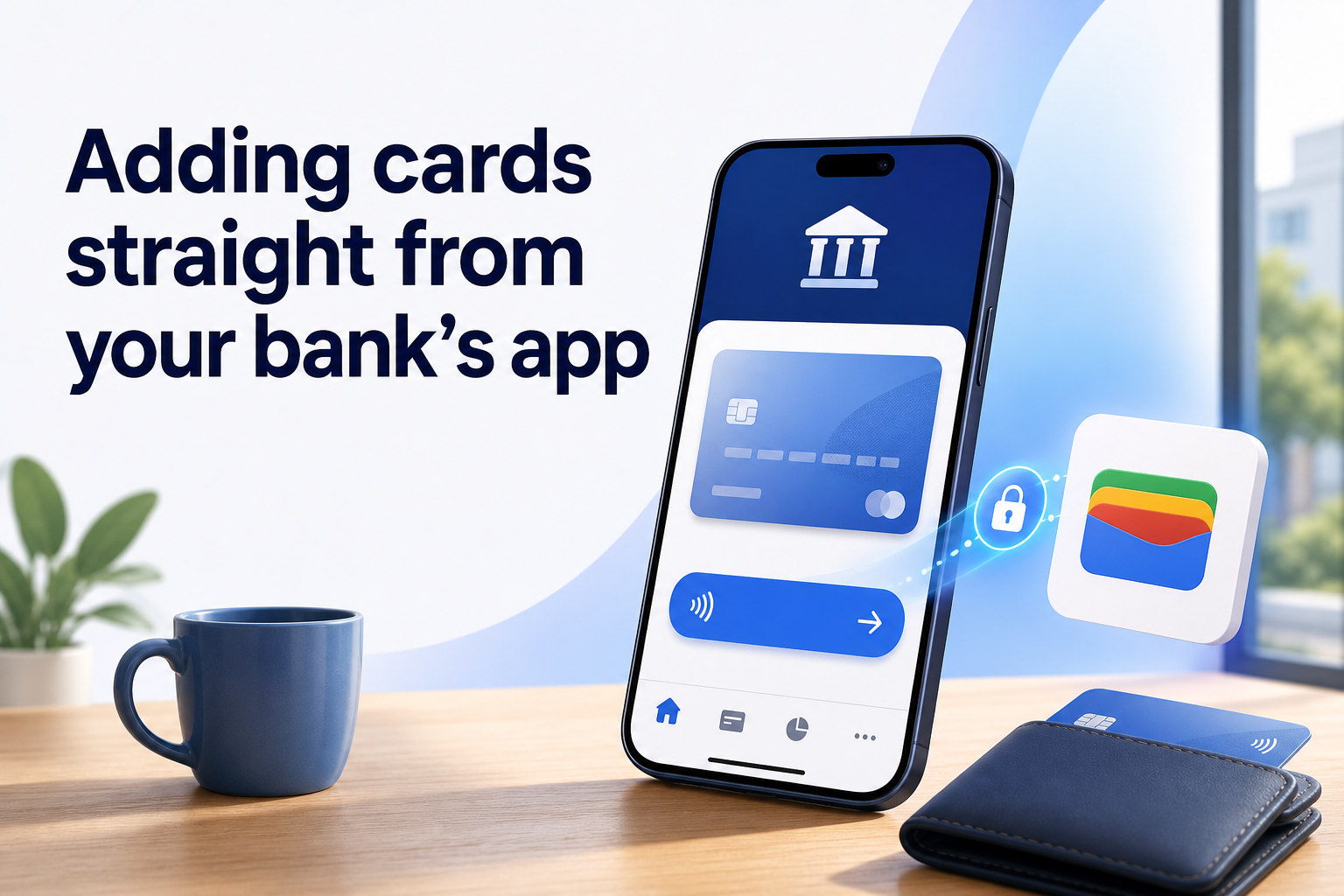
Some banks make adding cards even easier. If your bank’s app supports it, you can log in, tap “Add to GPay” or a similar button, and your card details are sent securely to Google Wallet—no typing required.
This is handy if you manage most things through your bank’s app or if you’re adding a card you rarely use and don’t want to dig it out of your drawer. Many bank websites offer the same option—just look for the Wallet or GPay icon when you’re managing cards online.
Not sure if your bank supports this? Check their help section or the cards area in their app. When it works, this route saves time, especially if you’re adding several cards at once.
Making daily life easier with Google Wallet
A good setup pays off when your day flows better. With cards, tickets, and loyalty programs all in Wallet, you spend less time searching through bags or pockets. If you commute, travel, or just have a busy schedule, keeping Wallet ready means fewer slowdowns and less chance of forgetting something important.
If you ever run into trouble—maybe a card won’t add or a pass doesn’t show up—take a look at the app’s prompts. Most problems can be fixed by re-verifying your card or refreshing the pass list. Keeping your phone charged also helps avoid surprises at checkout.
As you use Wallet more, you’ll notice which features you rely on. Maybe it’s the instant loyalty points at your favorite grocery store or the speed of boarding a flight with just your phone. Spending a bit of time on your Google Wallet everyday payments setup saves you from unnecessary stress and lets you enjoy your day without juggling cards or paper.